 Photos to PDF
How to use Photos to PDF
From photos to a finished PDF in under a minute, plus a tour of the PDF tools.
Watch the one-minute video
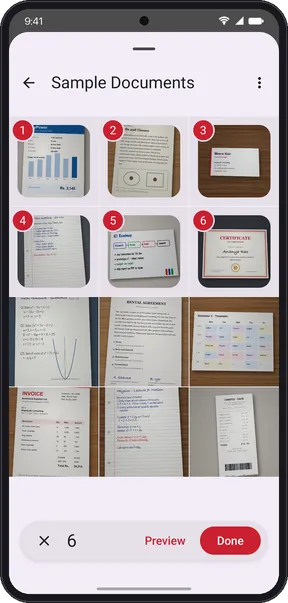
1. Pick your photos
On the home screen tap Image to PDF and choose photos from your gallery, or tap Scan to PDF to use the camera. Each photo becomes a numbered page. Press and hold a page and drag it to change the order. Use the buttons at the bottom to scan more, add more photos, switch between portrait and landscape, or delete selected pages.
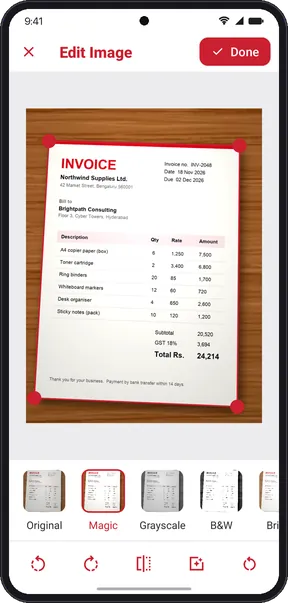
2. Edit a page
Tap a page to open the editor. Drag the four red corners to crop, use the arrows to rotate, and pick a filter. Magic makes text crisp, B&W suits forms and receipts. Tap Done to keep your changes, or Reset to start again.
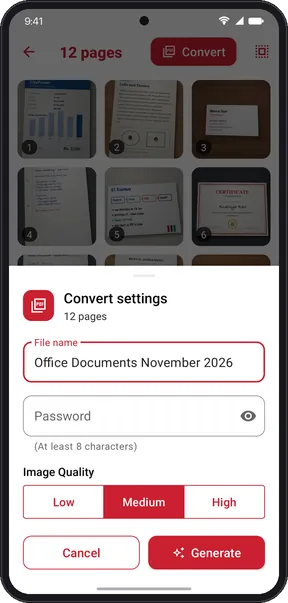
3. Convert to PDF
Tap Convert. Type a file name, add a password (8 characters or more) if the document is private, and choose the image quality. Tap Generate and watch the pages being made one by one.
4. Read and share
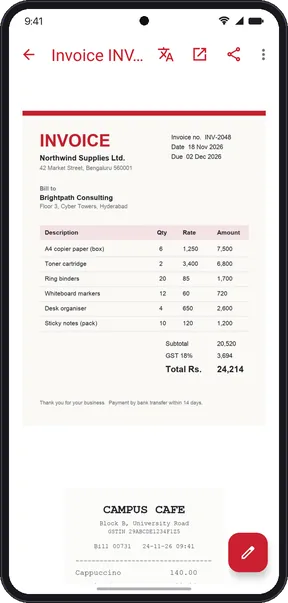
Your PDF opens straight away. Use the buttons at the top to translate it, open it in another app or share it. Tap the pencil to draw or write on it.
5. Find your files
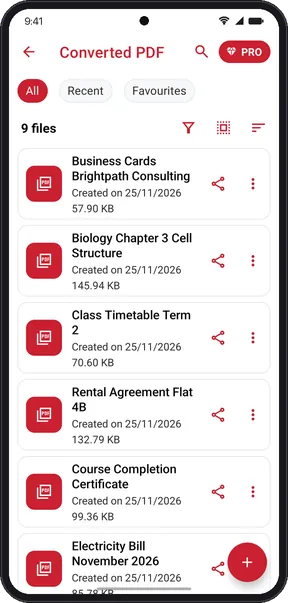
The Files tab lists every PDF on your phone. Filter by Recent or Favourites, search by name, and sort by date, name or size. Tap the share icon to send a file.
6. Use the PDF tools
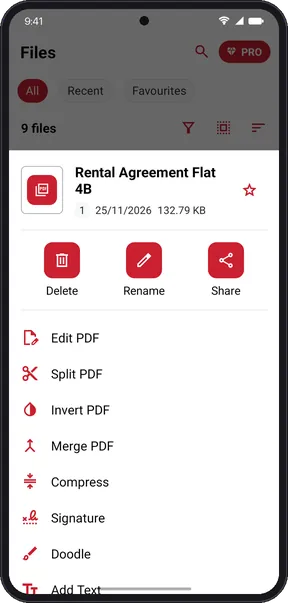
Tap ⋮ next to a file for its tools: edit, split, merge, compress, invert, sign, doodle, add text, set a password, make a copy, upload to Drive, see details and its save location.
7. Explore More Tools
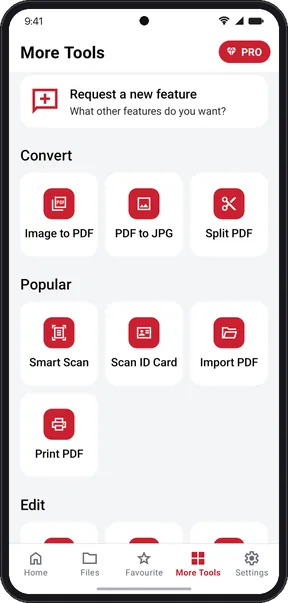
The grid tab gathers every tool in one place: Smart Scan, Scan ID Card, PDF to JPG, Import PDF, Print PDF, Merge, Compress, Signature, Lock and Unlock. Missing something? Tap Request a new feature.
8. Turn on offline AI
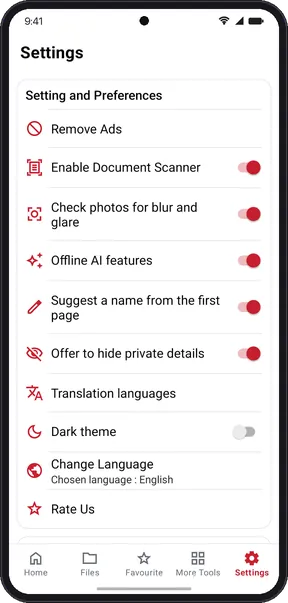
In Settings, switch on Offline AI features to check photos for blur and glare, get file names suggested from the first page and be offered to hide private details. Here you can also pick translation languages, switch to the dark theme and change the app language.
Remove ads
Tap the red diamond at the top of any tab to open Premium. Choose a plan and confirm with Google Play. Already subscribed on another phone? Tap Restore purchase.
Need more help? See the FAQ or email info@tasakiapps.com.